Setting up two-factor authentication
NAVIGATION My Account > My Settings > Security
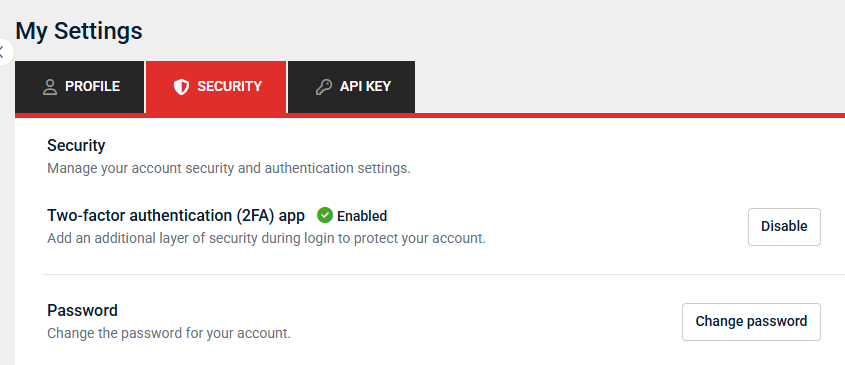
The Security tab on the My Settings page allows you to manage your two-factor authentication (2FA) settings and account password. For password management instructions, refer to Managing passwords.
Enabling 2FA app verification
Enabling two-step verification adds an extra layer of security to your user account.
Complete the following steps to set up two-step verification:
- Download any two-step verification app.
- In the upper-right corner of the header in vPenTest, click your profile name (My Account) and select My Settings.
- On the My Settings page, click the Security tab.
-
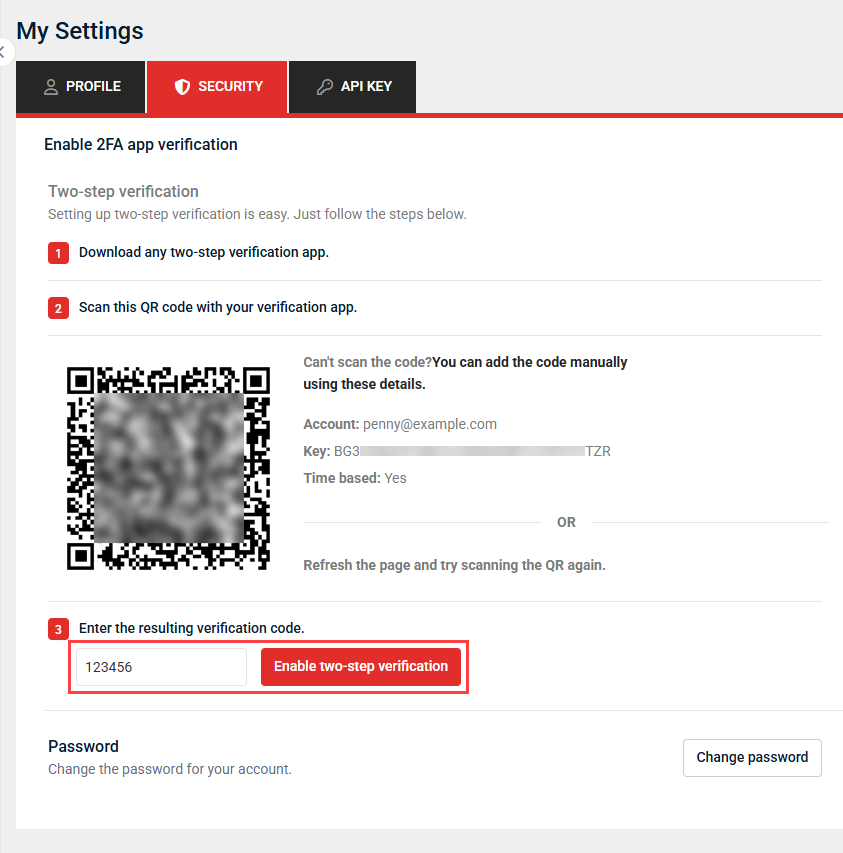
Using your verification app, scan the QR code displayed in the Security tab.
NOTE If you cannot scan the code, manually enter your vPenTest account email address and the unique one-time code displayed in the Security tab in your verification app. Alternatively, refresh the page in vPenTest and attempt to scan the QR code again.
- In the Enter 6-digit code field in the Security tab, enter the 6-digit verification code generated by your app.
- Click Enable two-step verification to complete setup.
In the Security tab, a checkmark icon  indicates you have 2FA enabled and must use your verification app to perform 2FA upon login.