Dark Web ID integration
NAVIGATION Admin Settings > Integrations > Dark Web ID
This integration allows vPenTest to automatically leverage compromised credentials from Dark Web ID as part of both internal and external network penetration tests.
Using compromised credentials from Dark Web ID, vPenTest can enumerate the environment for sensitive data and perform additional attacks, demonstrating the impact of stolen credentials. In the report, vPenTest will indicate if credentials found on the dark web were used as part of the penetration test to accomplish its objectives.
Leverage this integration to gain clarity on the risks of weak passwords, validate controls like two-factor authentication, and strengthen defenses against potential breaches.
By revealing how stolen credentials can be used by malicious actors to gain unauthorized access, vPenTest delivers deeper insights, stronger security outcomes, and greater value in every assessment.
How to...
 Enable the integration
To enable the Dark Web ID integration, complete the following steps in vPenTest:
- In the left navigation menu, click Admin Settings.
- Click the Integrations tab.
- Click Enable in the Dark Web ID tile.
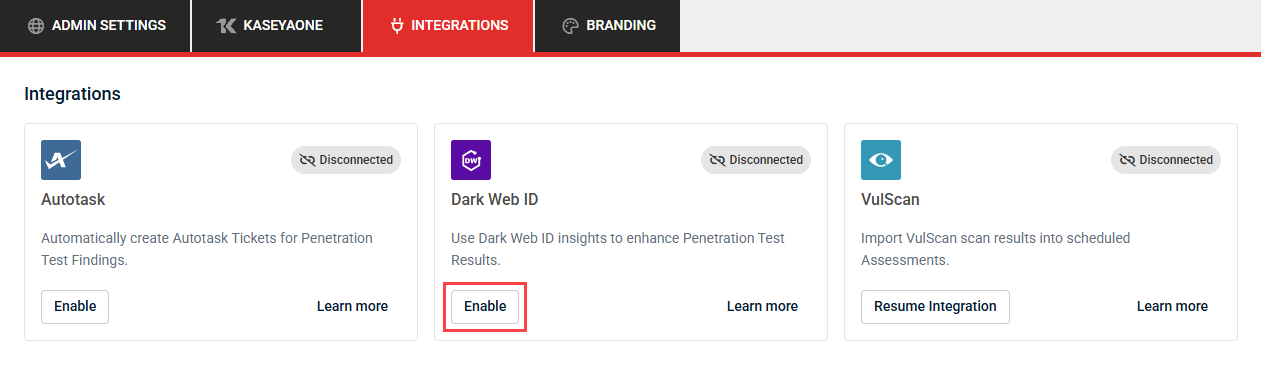
When the integration is enabled, a two-step setup form appears. You can click Save or Close at any point if you do not want to complete setup immediately.
Step 1: Details
- Enter your Dark Web ID username and password.
- Click Test Integration.
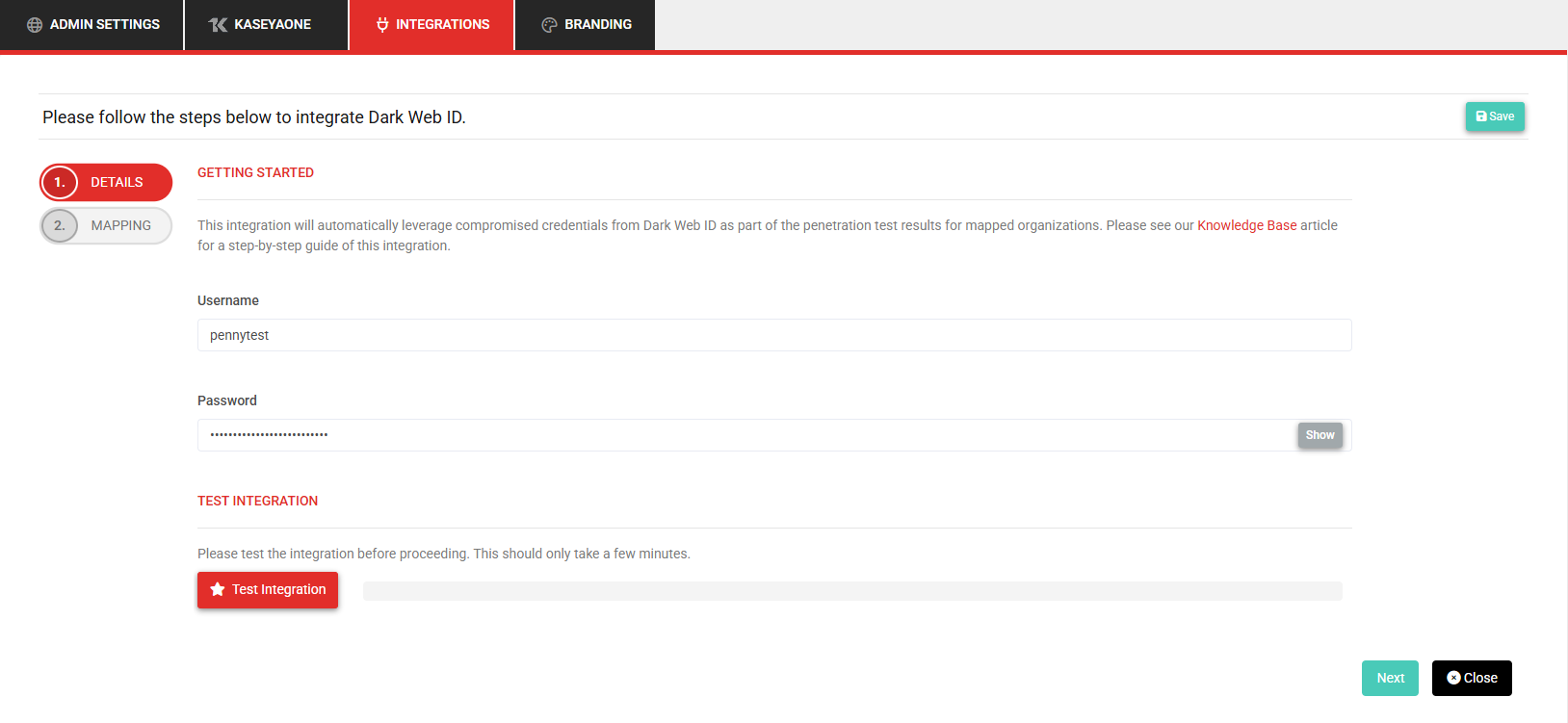
Once the authentication is validated, you can proceed to the next step.
Step 2: Mapping
This step displays all organizations available in vPenTest for the logged-in user. Refer to Creating and managing organizations. The user can map these vPenTest organizations to their corresponding Dark Web ID organizations using the drop-down menus in the Existing Organization in Dark Web ID column.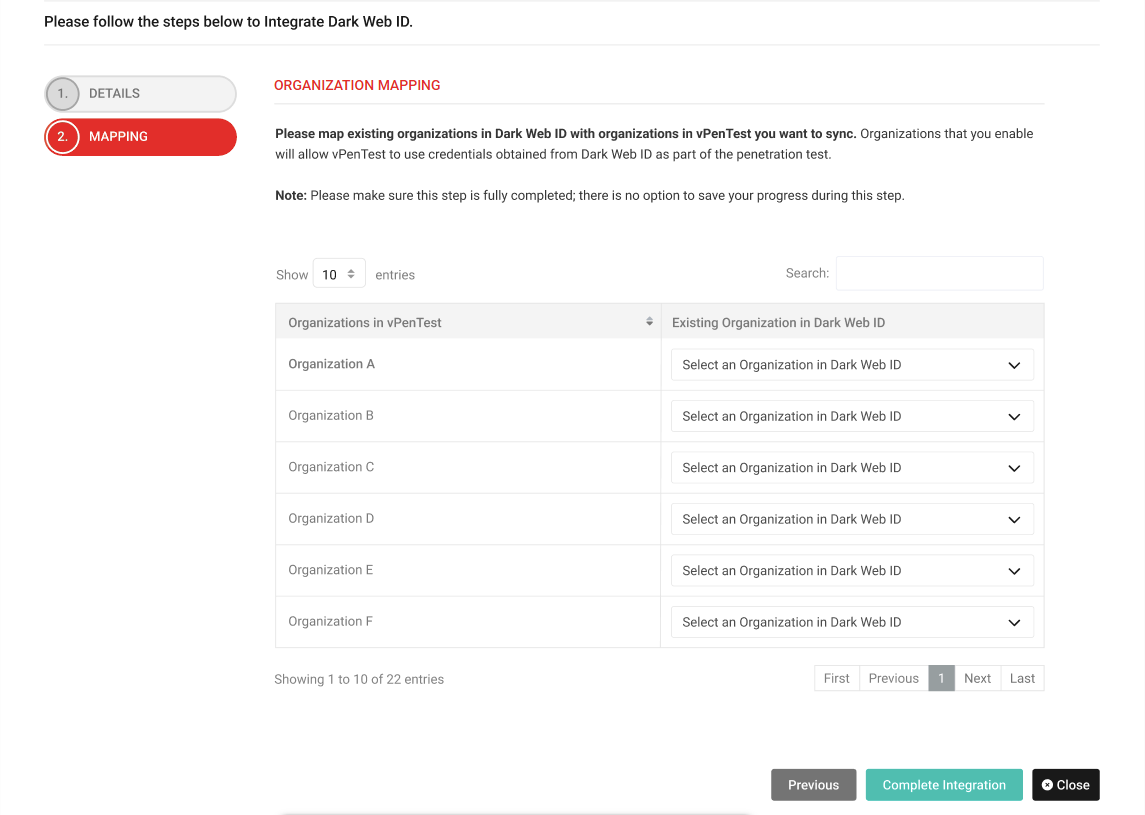
Once mapped, organizations show a Dark Web ID icon on the List of Organizations page in vPenTest.
When finished, click Complete Integration.
Identify organizations with Dark Web ID enabled
An organization that is mapped to a Dark Web ID organization displays a Dark Web ID icon on the List of Organizations page. This helps you quickly identify which organizations are synced. Refer to Creating and managing organizations.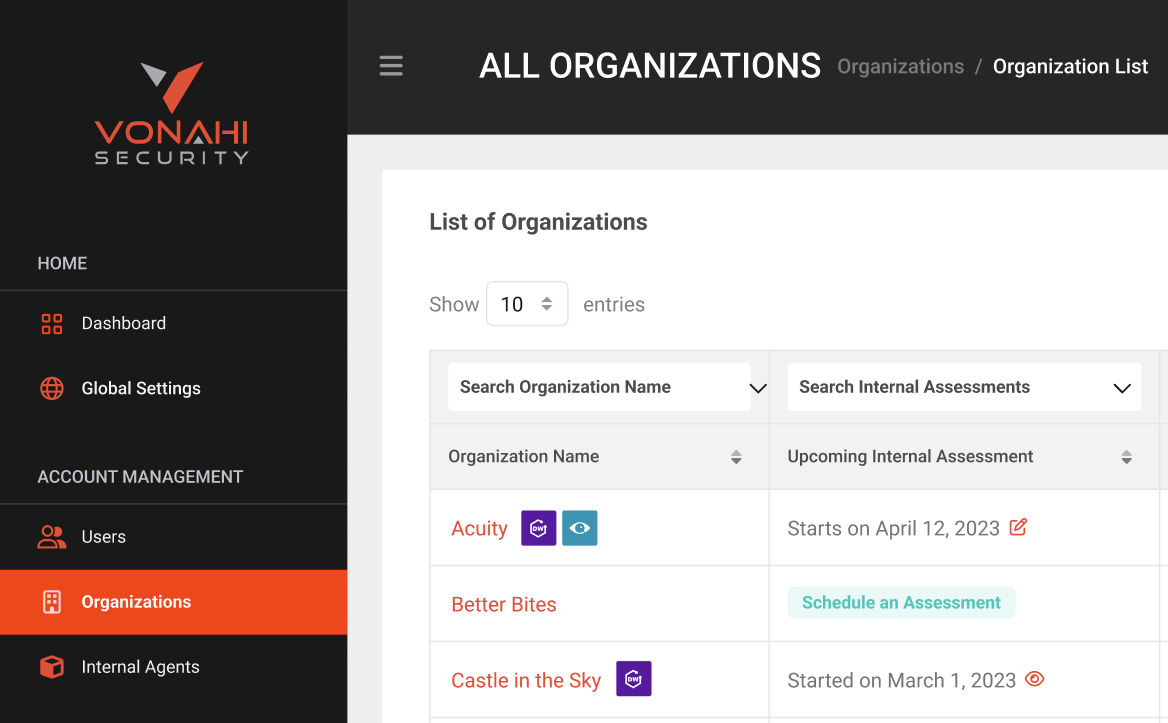
View and change synced organizations
If an organization in vPenTest is mapped to a Dark Web ID organization, the organization profile page displays the sync details. Locate the Dark Web ID Integration row in the Details for [Organization] section in the upper-left corner of the Profile Details tab. Refer to Managing an organization profile in Creating and managing organizations.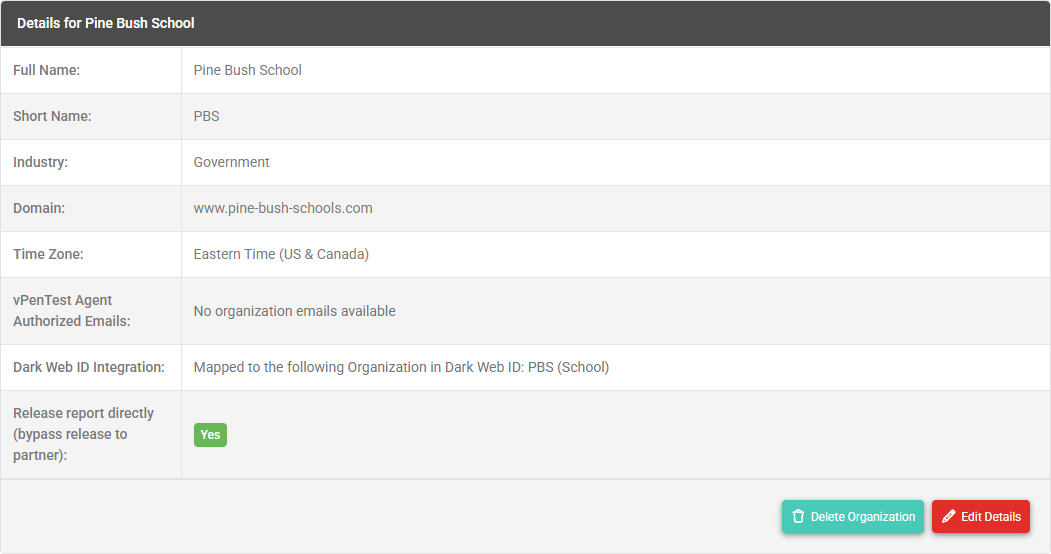
If the organization is not already mapped and the Dark Web ID integration is enabled, this row displays a Map to a Dark Web ID Organization option.
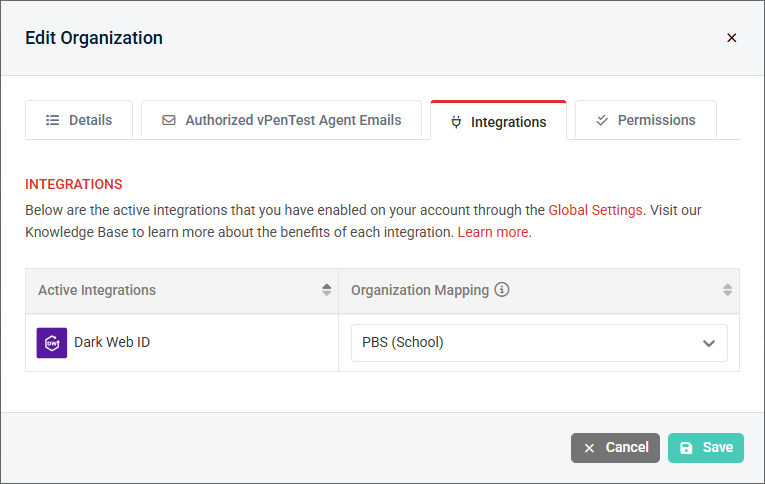
To change the mapped organization, complete the following steps:
- In the left navigation menu, click Organizations.
- Select the organization you want to update.
- Click Edit Details.
- Click the Integrations tab.
- From the drop-down menu in the Organization Mapping column, select the Dark Web ID organization you want to sync with the vPenTest organization.
Disable the integration
To disable the Dark Web ID integration, complete the following steps in vPenTest:
- In the left navigation menu, click Admin Settings.
- Click the Integrations tab.
- Click Disable in the Dark Web ID tile.
- In the confirmation pop-up window, click Disable Integration to execute the disabling.
NOTE If you re-enable the integration later, previously mapped organizations remain mapped. You only need to map new organizations.
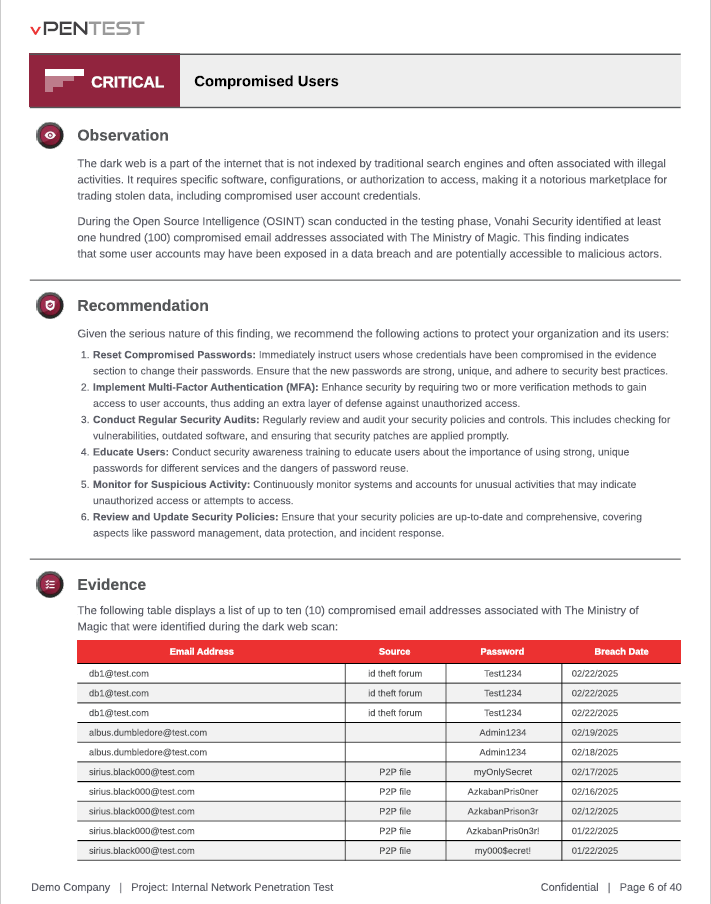
Sample technical report with Dark Web ID credentials
Any assessments you schedule with the Dark Web ID integration enabled will allow vPenTest to use the credentials for that organization during the scheduled penetration test.
The following screenshot shows sample output of what you can expect to see in the technical reports: